Slack Integration FAQ
The Align-Slack integration lets you:
- Receive personal alerts about your Align work in Slack, excluding Tasks.
- Update your Huddles in Slack
- Check your Align information from Slack
- Celebrate company goal accomplishments with your whole Team
All levels of Slack accounts (Free, Standard, Plus and Enterprise) can connect to the Align app.
Personal Alerts
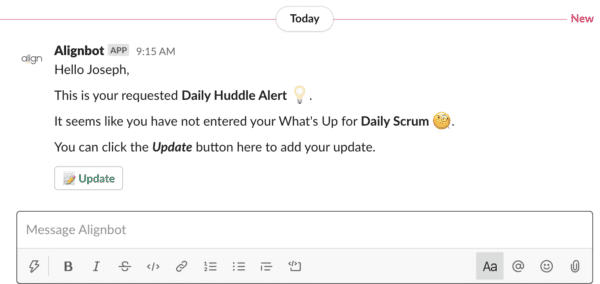
Once your Align user profile is connected to Slack (see “Connect Your User Profile to Slack” section below), you will receive some of your Personal Alerts as Slack Direct Messages, instead of emails. These four alerts will go to Slack:
- Daily Huddle Not Complete
- Weekly Huddle Not Complete
- Top Priority Not Completed
- Custom Alert

Note that your Huddle alert messages also allow you to update your Huddle information.
All other Personal Alerts will continue to go to email. You will still configure these alerts in the Personal Alerts section on your Profile page in Align.
Update Huddles
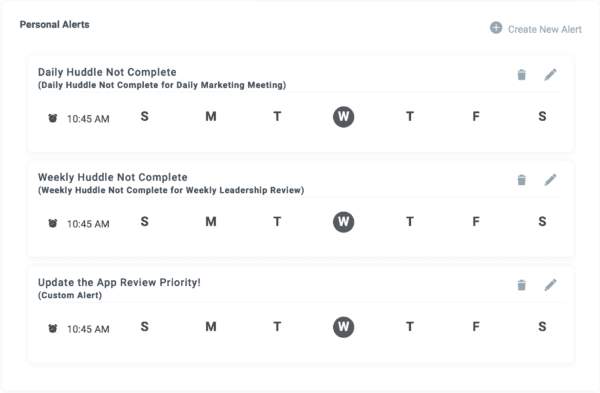
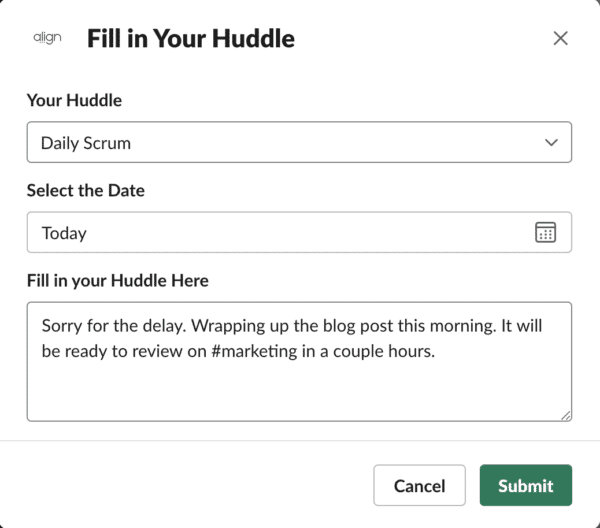
Clicking on the “Update” button on your Daily and Weekly Huddle Personal Alerts or Huddle Slash Commands will allow you to update the “What’s Up” section of your Huddles directly in Slack.
Check Huddle Information and Top Priority Status with Slash Commands
Once your Align user profile is connected to Slack (see “Connect Your User Profile to Slack” section below), you can use three slash commands to check and update Huddle content, and to check your Top Priority status for the day.
For Huddle Content:
/dailyhuddle/weeklyhuddle
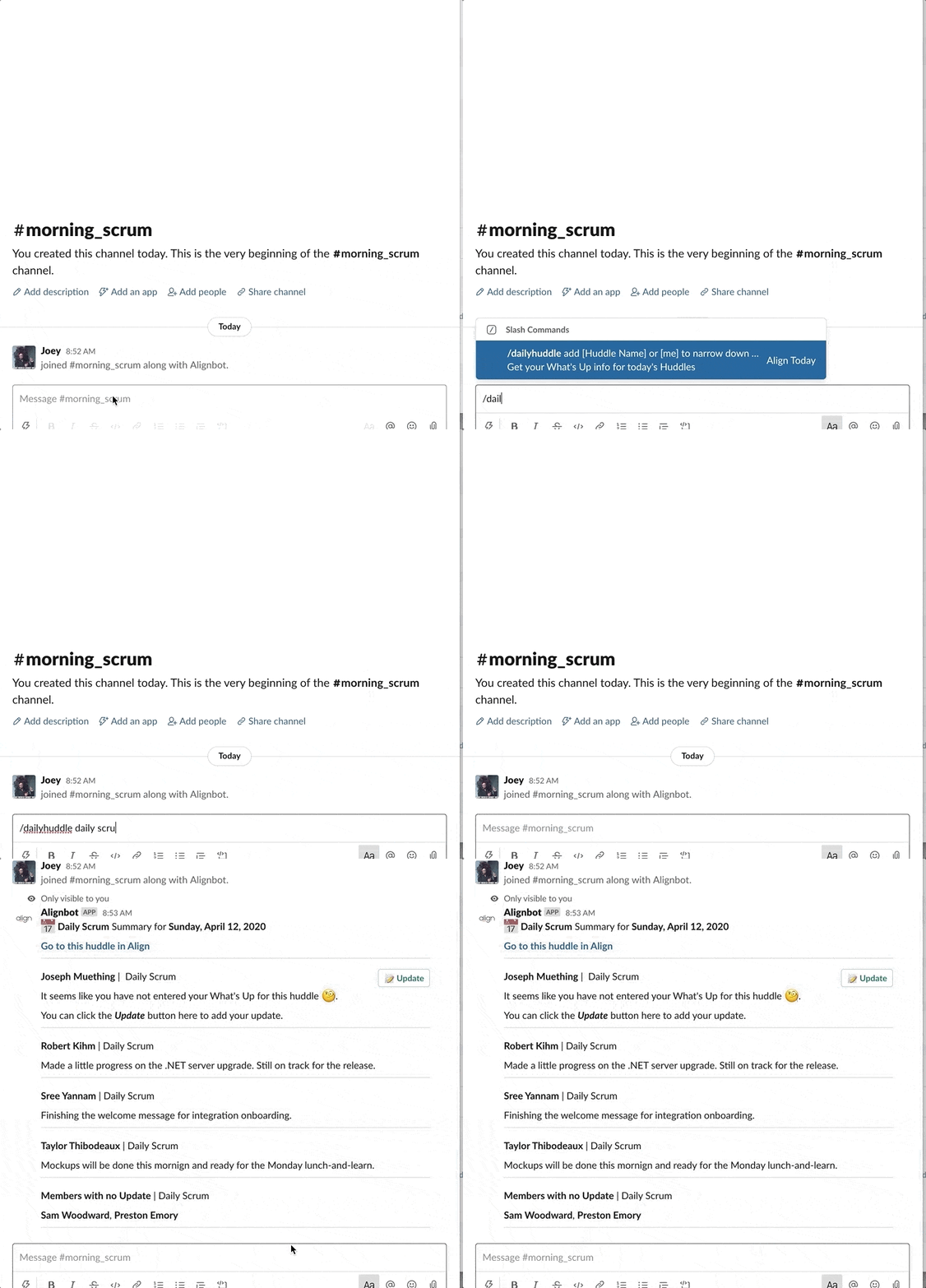
Typing one of these commands will return your What’s Up content, and all other members’ content, for the Huddles you belong to. /dailyhuddle returns content for today’s occurrence of your Daily Huddles, and /weeklyhuddle returns content for the next upcoming occurrence of your Weekly Huddles.
You can also add some arguments to the slash commands to narrow down the content returned:
/dailyhuddle [Huddle Name]and/weeklyhuddle [Huddle Name]will return content for all members, but just for that one Huddle./dailyhuddle meand/weeklyhuddle mewill return content across all your Huddles, but just your own content./dailyhuddle [Huddle Name] meand/weeklyhuddle [Huddle Name] mewill return just your content and just for the one Huddle.
For Top Priority Status:
/toppriority
Use this command to check the status of your Top Priority for today.
If today’s Top Priority isn’t complete, you’ll get a message like this:
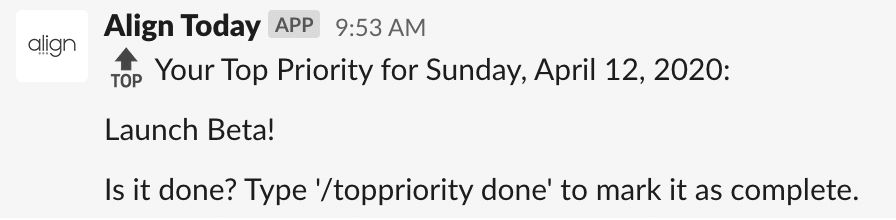
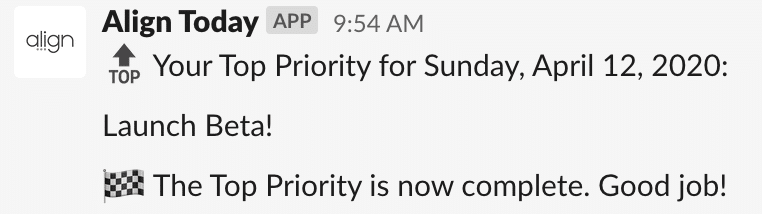
Typing /toppriority done (you can also use the keywords “complete”, “completed”, “finish” or “finished”) will mark it as complete and give you this message. You’ll also get this message if you use /toppriority and today’s Top Priority is already complete.
You can also update your Top Priority for today by typing in a new description after the command. For example, typing this:
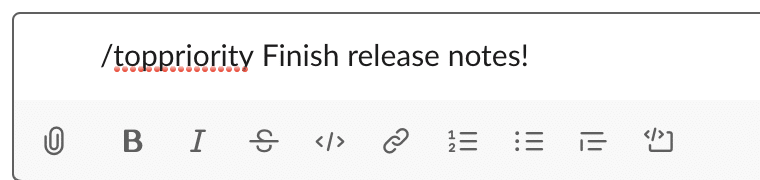
Will get you this message:

Default Channel Team Updates
Once your Align company account is connected to Slack (see “Connect Your Company to Slack” section below), Alignbot will begin posting team updates to the default channel you choose. Help motivate your Team to accomplish their goals and celebrate wins. These updates include:
- When a Priority is updated
- When a Task is completed
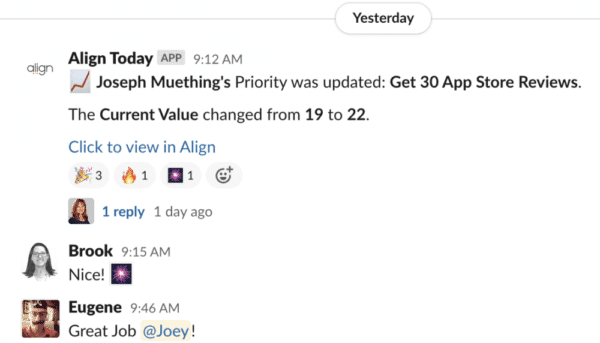
A few notes:
- Clicking on the links will take you to that Priority or Task in Align
- Updates for all Align users’ Priorities and Tasks will appear in this channel, even if they are not integrated with Slack
- Only updates for publicly available Priorities and Tasks will appear in this channel. Priorities and Tasks with Team or User level visibility security are excluded.
Connect Your Company to Slack (To receive public channel Team Priority and Task updates):
The first step in activating the Align-Slack integration is to connect your Align company to your Slack workspace.
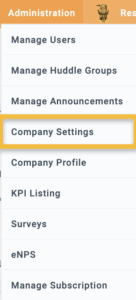
- An Align administrator should go to the Administration > Company Settings page
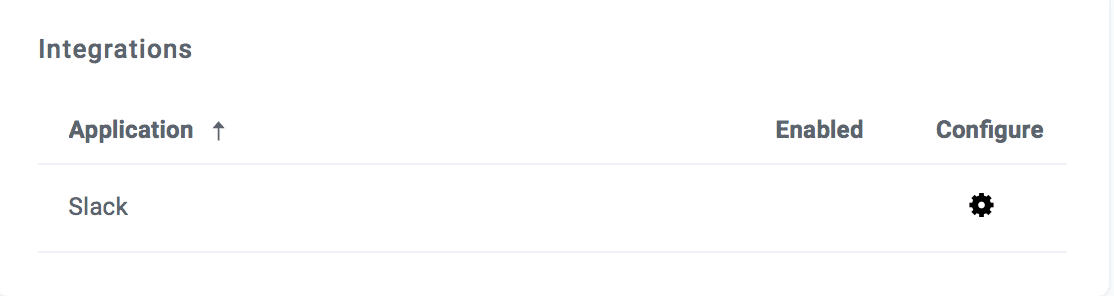
- In the “Integrations” section, click the Configure icon for Slack
- In the “Slack Configuration” drawer, click the connect to Slack button:
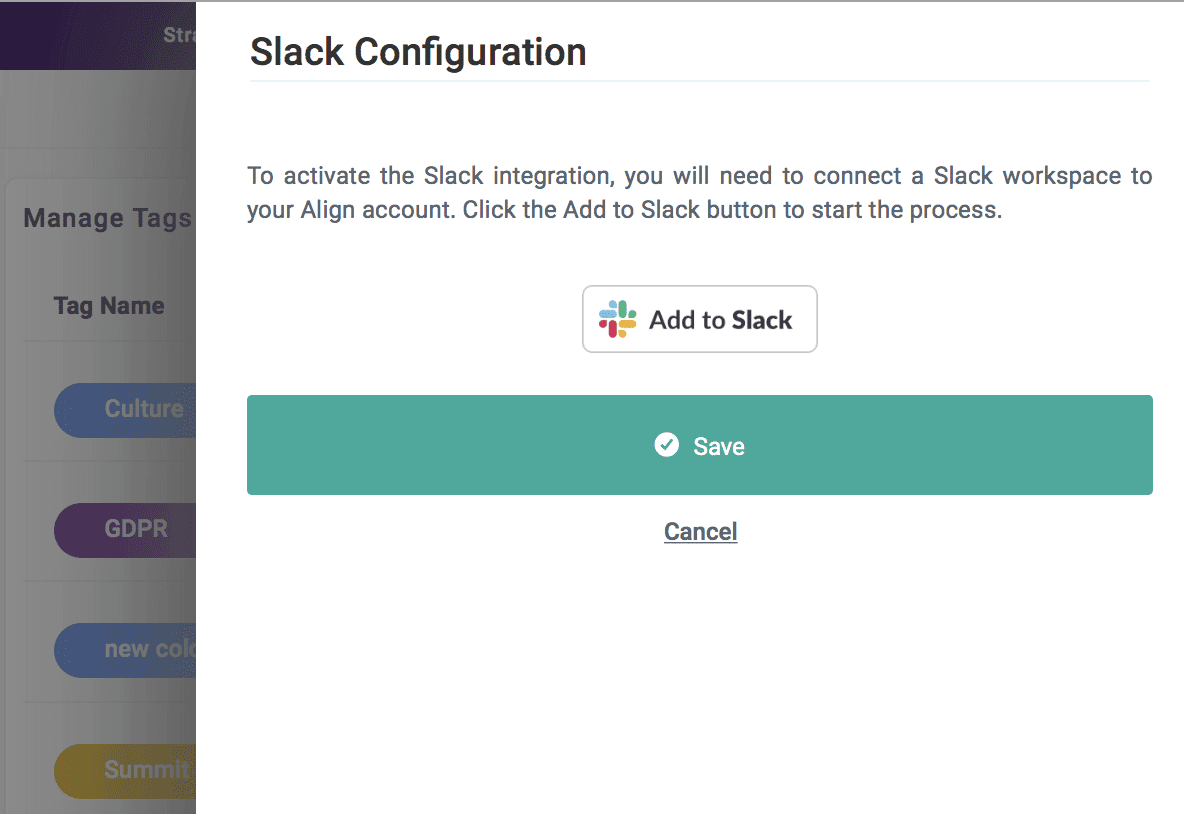
- You’ll be taken to a Slack page to configure and confirm your integration.
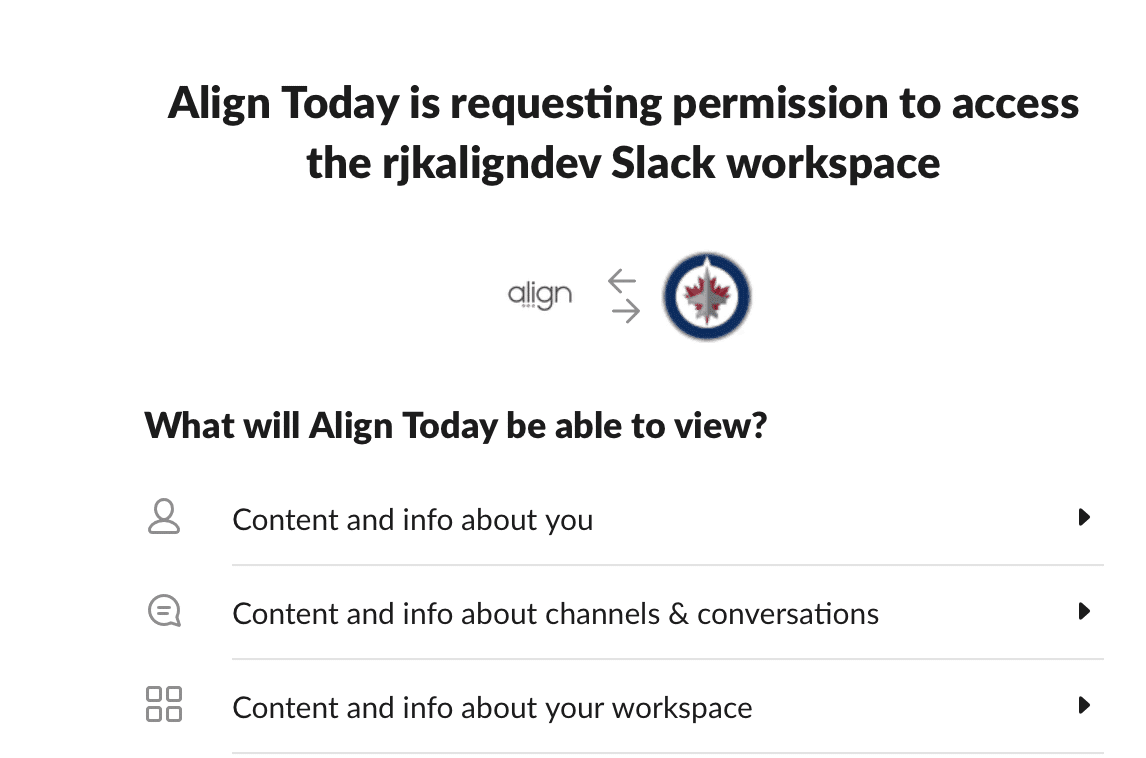
By default, Align will try to connect to the Slack workspace that you’re currently logged in to. If you’d rather connect to a different workspace, you can select it from the dropdown on the top-right corner of the screen:
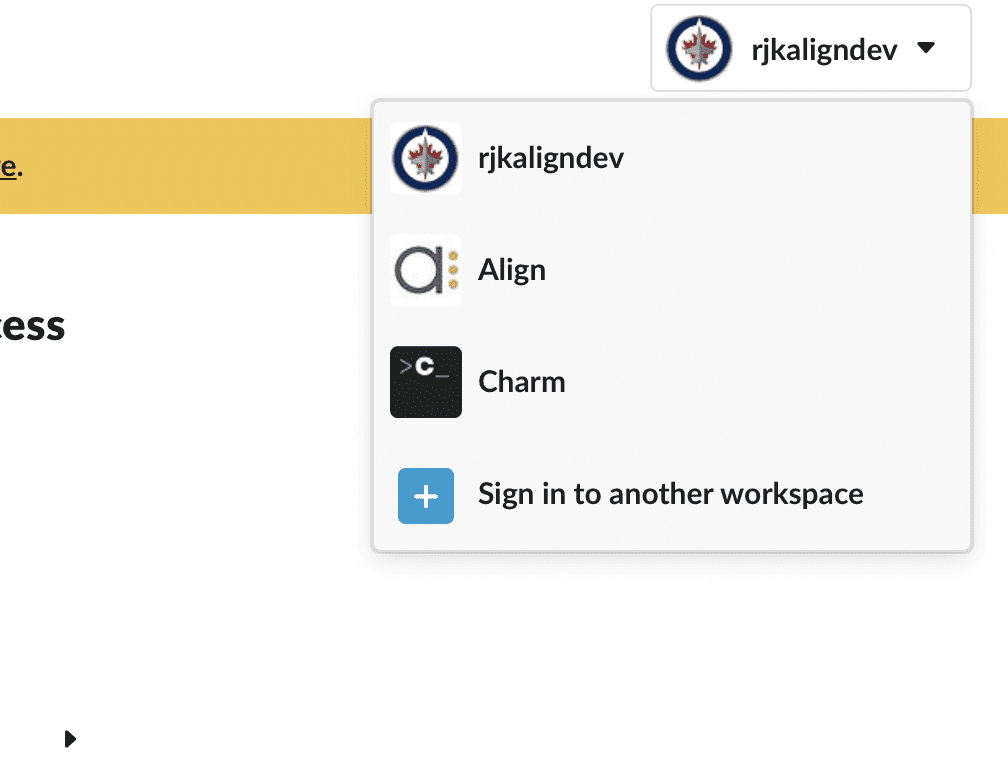
- Once you’ve selected the desired workspace, select your default channel at the bottom of the page. Company-wide progress announcements will be sent from Align to this channel.
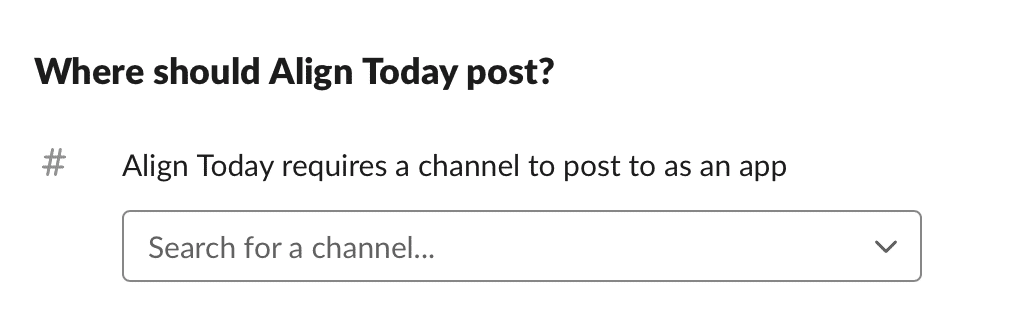
- Finally, click “Allow” to finish the approval process:
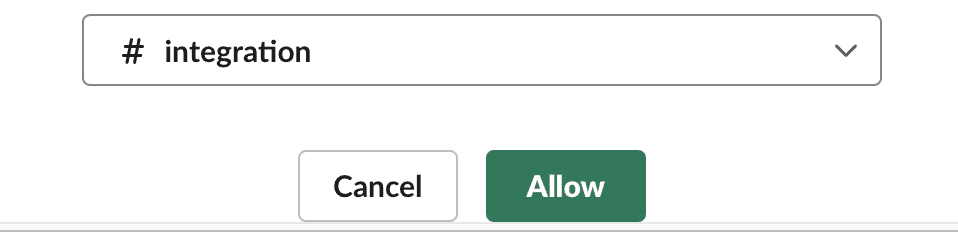
- You’ll then be redirected back to Align to complete the integration.
- You will also receive a notification in your Slack workspace that the integration is now active.
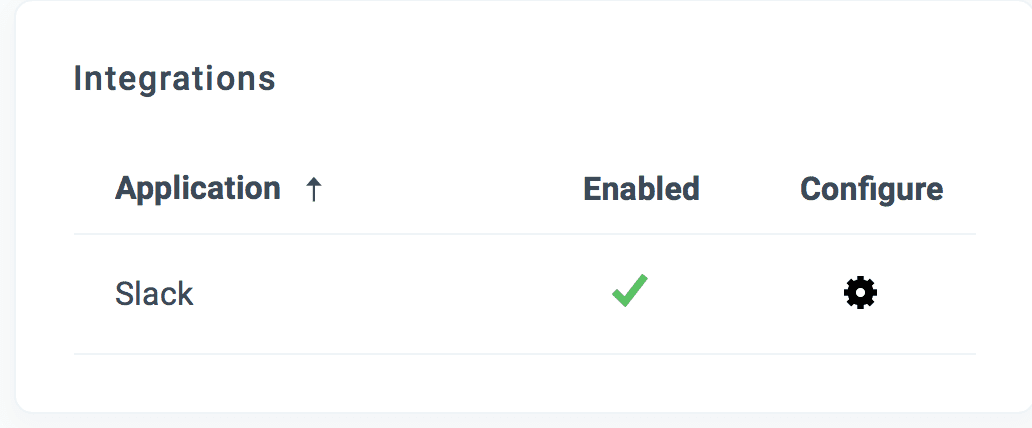
Connect Your User Profile To Slack (To receive personal alerts and use slash commands):
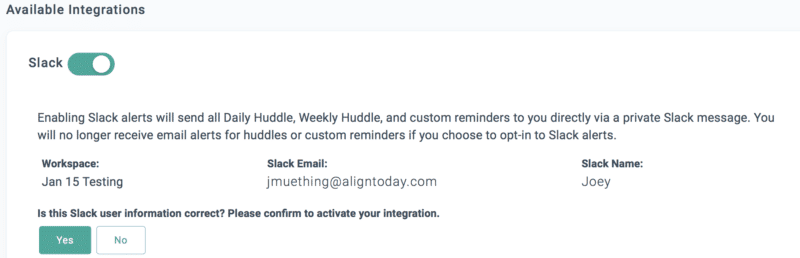
The Align-Slack integration also allows individual team members to receive private alerts to update Align Huddle information, and to update their Huddle information directly in Slack. Users can turn on Slack alerts on the personal integrations page or in the Alerts section of their user profile.
If the Slack toggle is disabled, ask an Align admin in your company to connect your Align account to Slack (see the “Connect Your Company to Slack” section above).
- Turn the Slack Alerts toggle ON. Align will try to find your Slack profile based on your Align email and user name. If Align is able to find a match, you will see the user information next to the toggle. If the match is correct, confirm and you’re done!
- If the match is incorrect, or Align couldn’t find a match, you’ll need to provide your Slack member ID. To do this, first go to Slack. Click on your Slack user name in the top-left corner of the Slack app. Click “Profile & account” from the dropdown. Click the ellipse on the right-side profile section and select “Copy member ID”. Paste that ID into Align.
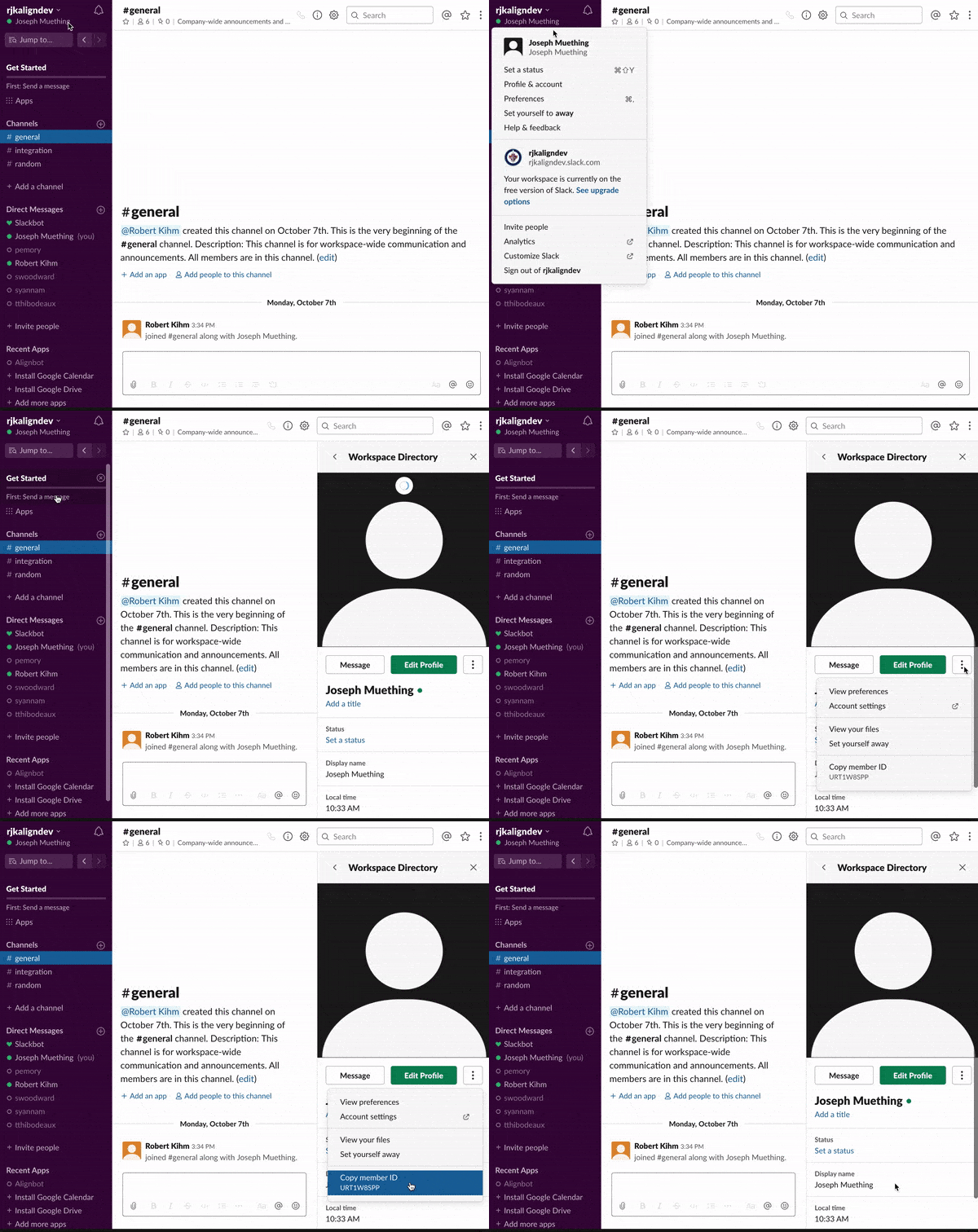
- Now your Align user is connected to Slack! You should see “Alignbot” under the Apps section on your Slack menu:
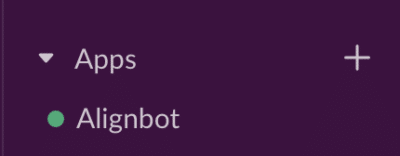
If you don’t see it, click the “+” button next to “Apps” and add the Align App:


Disconnect the Align App from your Slack workspace:
In the Administration > Company Settings page, click the “Configure” icon for the Slack integration, and then the “Delete” icon.

You’ll be redirected to the App settings page in Slack. Click the “Configuration” tab.
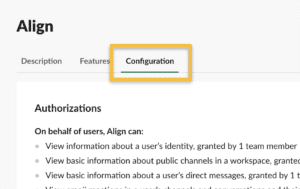
At the bottom of the page, click the “Remove App” button.