What is a Team?
Within your Align account, a “Team” consists of all members of a Huddle Group. For example, the 12 members of the “Marketing Daily Huddle” would be their own Team and have the ability to create the Team-specific objects.
The following sections will describe in more detail how you can use Team Security to better control your work in Align.
What is Teams Security?
Teams Security gives you better control over access to strategic planning and execution material in Align. You can use this feature in many ways, and these are just a few examples:
- The executive team can have their own One Page Strategic Plan as part of their quarterly planning.
- The East Coast and West Coast offices can have their own sets of Priorities. Members of each office can only view their own Priorities, while the executive team gets visibility into both.
- The marketing team can have their own set of Critical Numbers, specific to their new lead initiative in the upcoming quarter.
What can I do with Teams Security?
With Teams Security, you will be able to do the following things in Align:
- Limit visibility of a Priority to one or more Teams
- Limit visibility of a Task to one or more Teams
- Limit visibility of a Task to a chosen set of users
- Create a Team-specific One Page Strategic Plan, and make it visible to the whole company
- Create a Team-specific One Page Strategic Plan, and limit visibility to just the Team
- Create a Team-specific set of Critical Numbers, and make it visible to the whole company
- Create a Team-specific set of Critical Numbers, and limit visibility to just the Team
Priorities
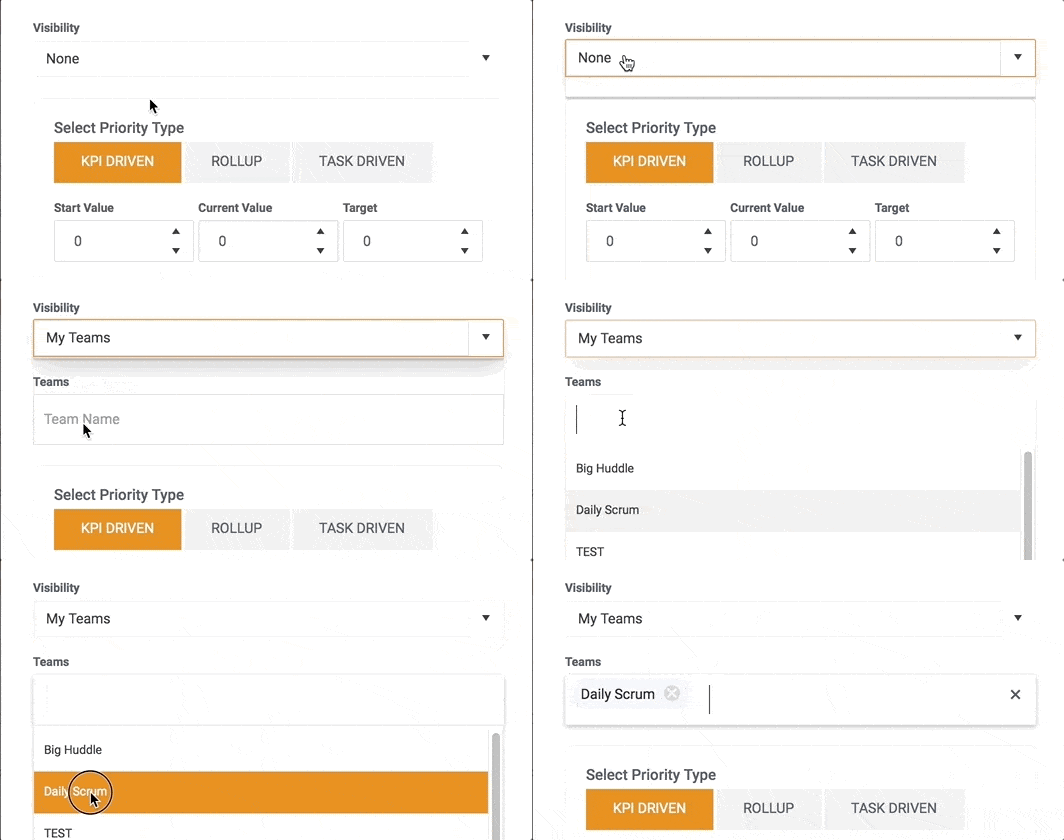
To put Team-level security on a Priority:
- Create or edit a Priority
- Select “My Teams” from the Visibility dropdown
- A “Teams” section will appear. Select the Teams who should be able to view this Priority
Notes:
- Within the “Teams” section, you will only be able to select Teams that the current Priority Owner belongs to.
- All admins and non-admin owners can change the security settings of a Priority.
- What was previously called “Secure Priorities” (selecting a group of users who can see the Priority) has been moved to the Priority Security section. Use “Selected Users” instead of “Teams” to limit to certain users. Previously-created Secure Priorities still work as expected.
- Team-level or User-level Secure Priorities will not be visible anywhere in Align to users without permission. This includes in Dashboards, Reporting and Huddles.
- A Child Priority will initially inherit the security settings of its Parent Priority. From there, a user can choose to limit visibility of a Child further. However, a user can never have access to the Child but not the Parent. Examples:
- If the Parent is limited to Team A and Team B, the Child can be limited just to Team B.
- If the Parent is limited to Team A, the Child can be limited to just Bob Smith (if Bob Smith belongs to Team A).
- If the Parent is limited to Team A and Team B, the Child cannot be limited to just Team C.
- If the Parent is limited to Team A, the Child cannot be limited to just Jane Doe (if Jane Doe doesn’t belong to Team A).
Tasks
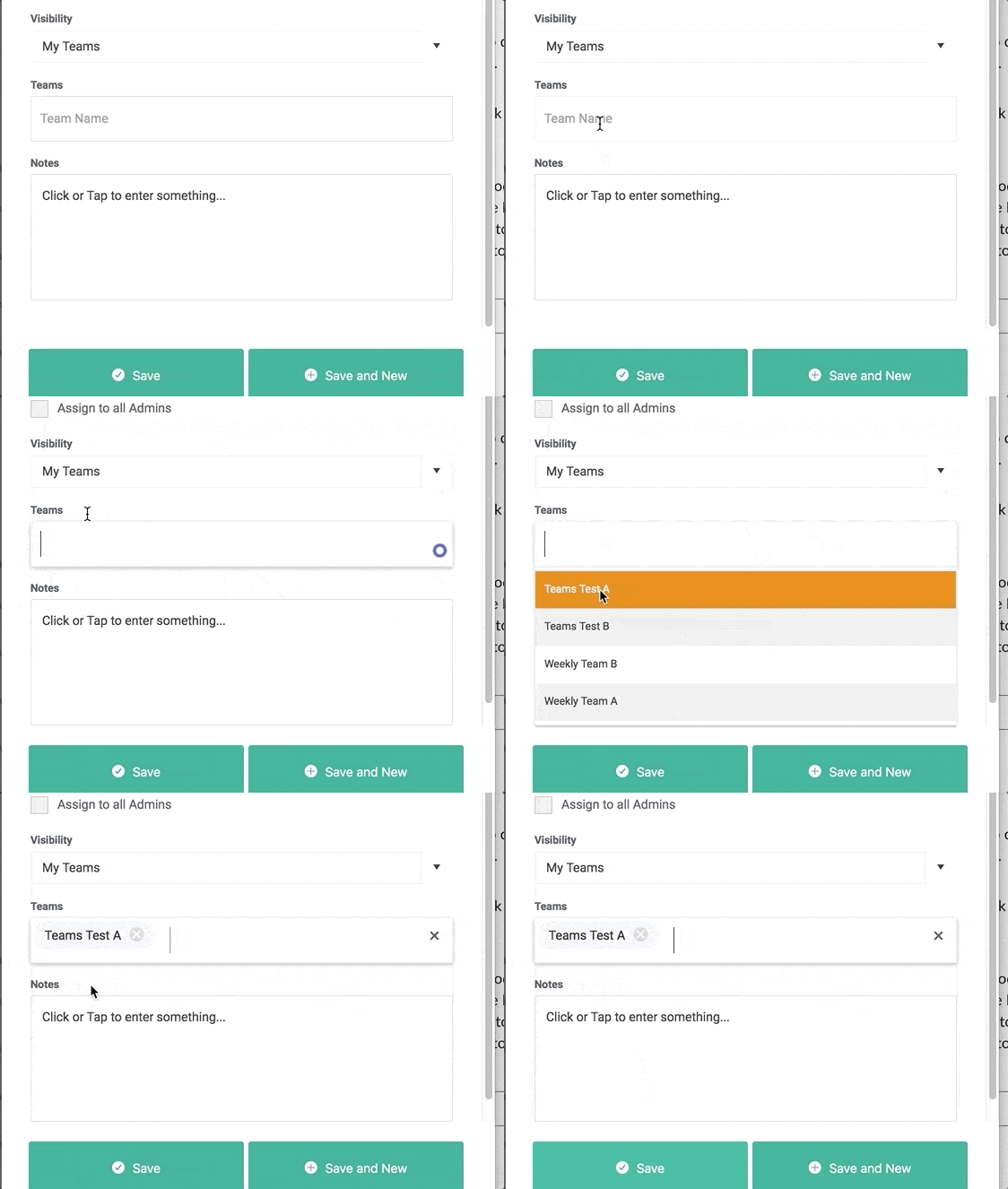
To put Team-level security on a Task:
- Create or edit a Task.
- Select “My Teams” from the Visibility dropdown.
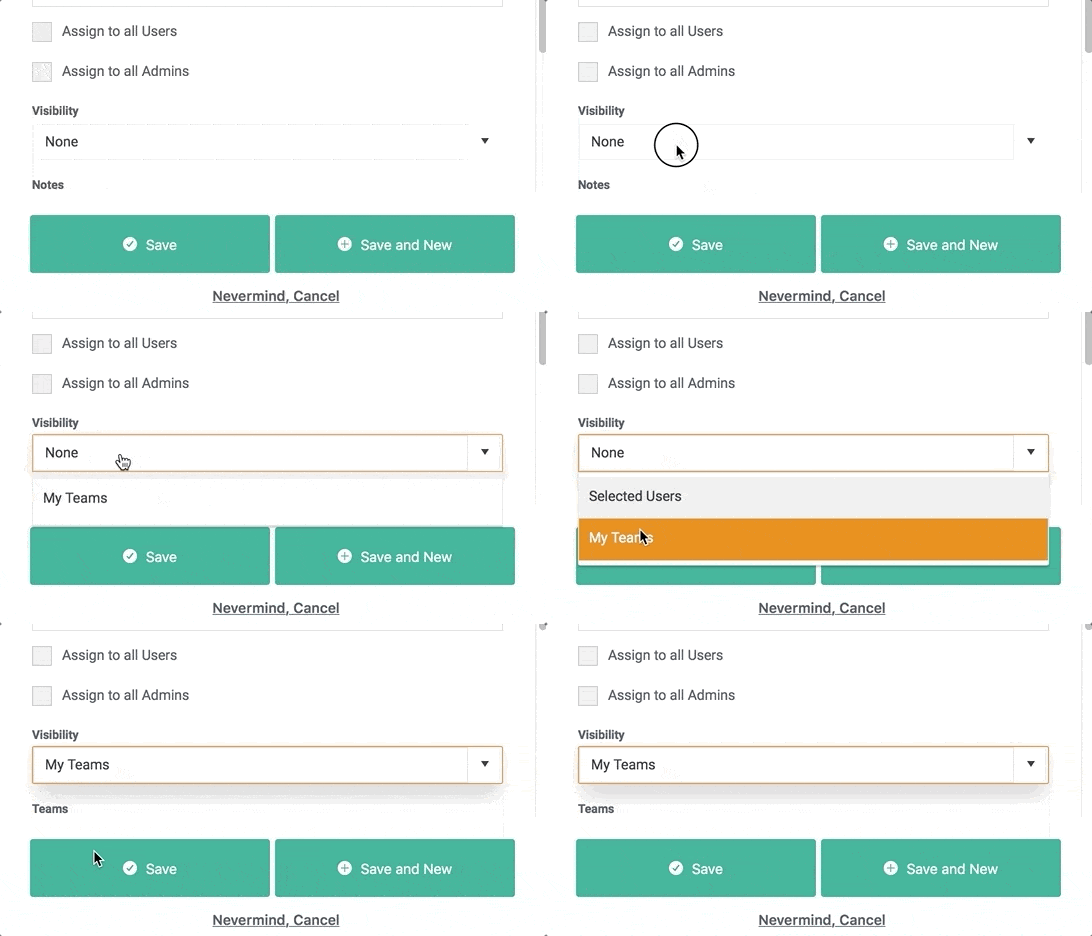
- A “Teams” section will appear. Select the Teams who should be able to view this Task.
To put User-level security on a Task:
As part of this feature release, we’re also excited to allow User-level security on Tasks! “Secure Tasks” has been a popular feature request.
- Create or edit a Task.
- Choose “Selected Users” from the Visibility dropdown.
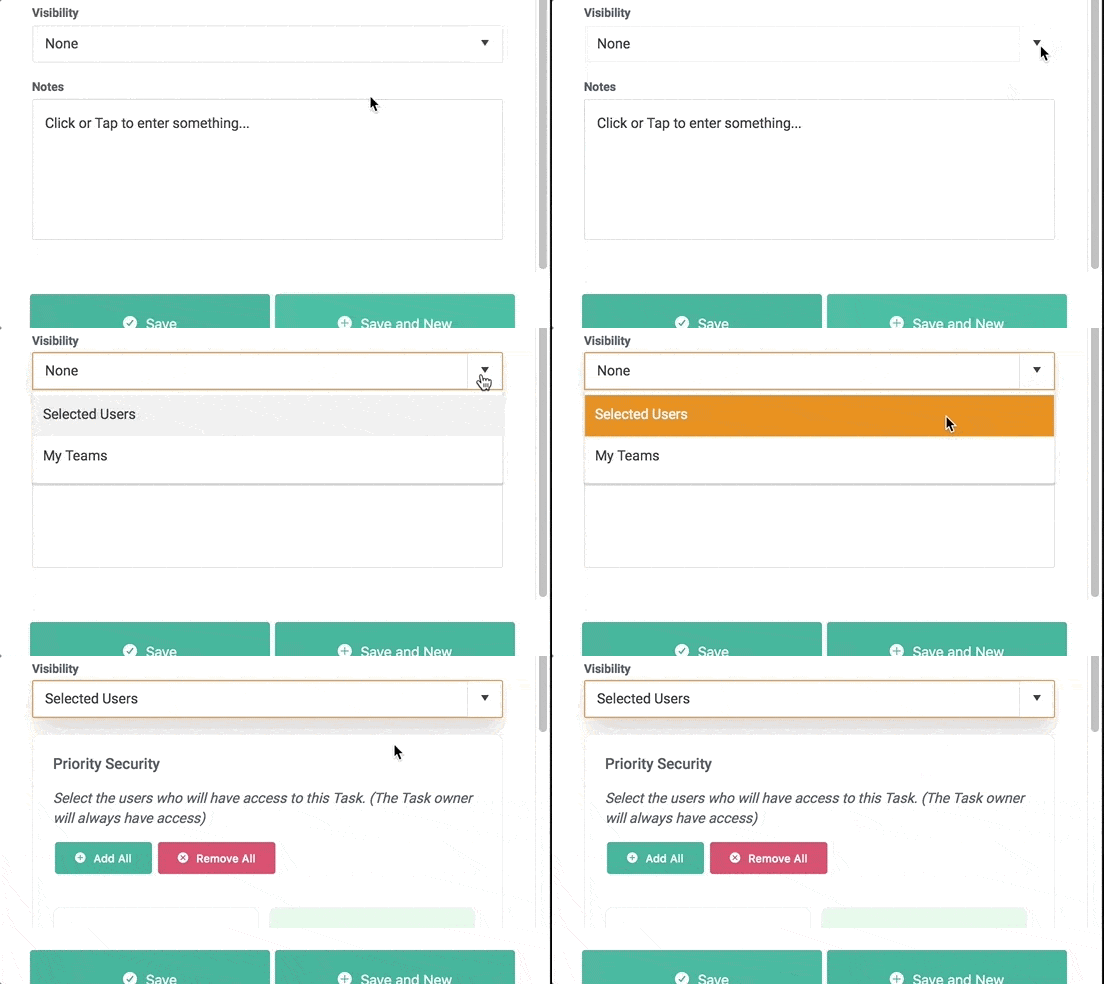
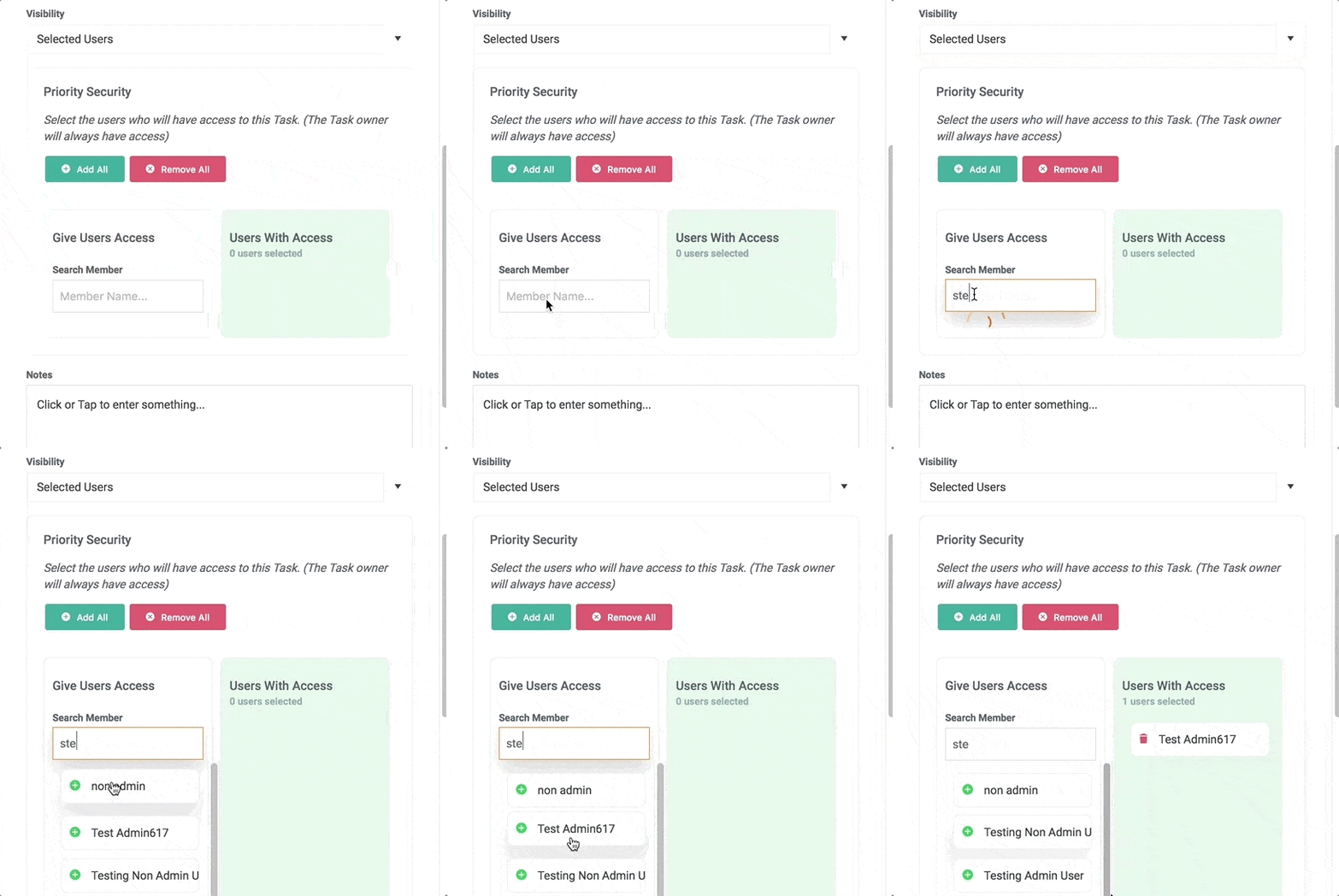
- A “Users” section will appear. Select the Users who should be able to view this Task.
To associate a Task with a Secure Priority:
A Task associated with a Priority will always inherit the security settings of the Priority. The security settings of the Task cannot be changed while it’s associated with a Priority.
Notes:
- Within the “Teams” section, you will only be able to select Teams that the current Task Assignee belongs to.
- All admins and non-admin owners can change the security settings of a Task.
- Team-level or User-level Secure Tasks will not be visible anywhere in Align to users without permission. This includes in Dashboards, Reporting and Huddles.
One Page Strategic Plan
Teams are now able to create and manage their own One Page Strategic Plans!
To create a Team-level OPSP:
- Click “Manage Teams” on the One Page Plan dropdown. Click “Create” for the Team you want and Confirm. Note: only Admins can create, delete or change security settings on Team Plans.
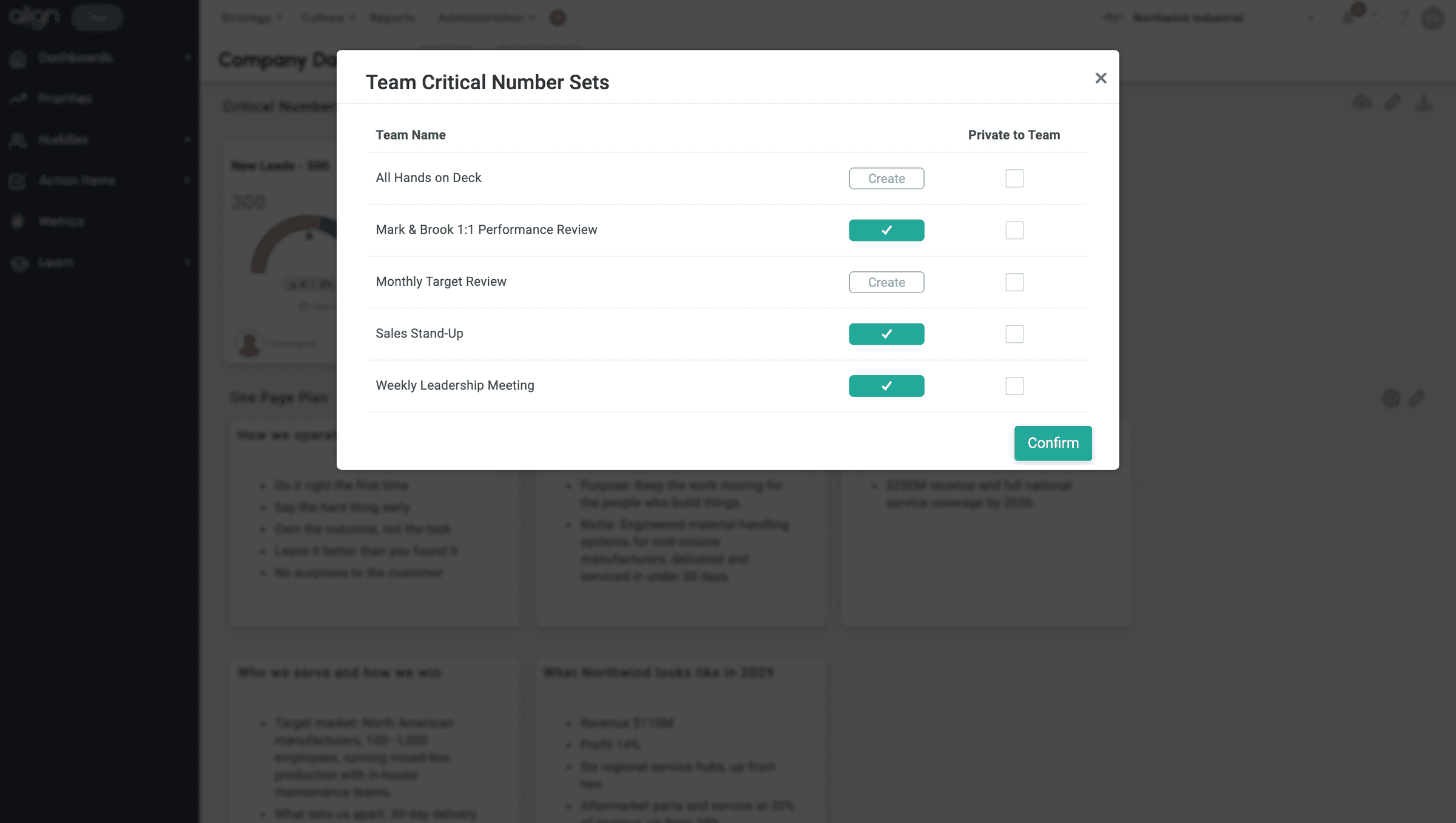
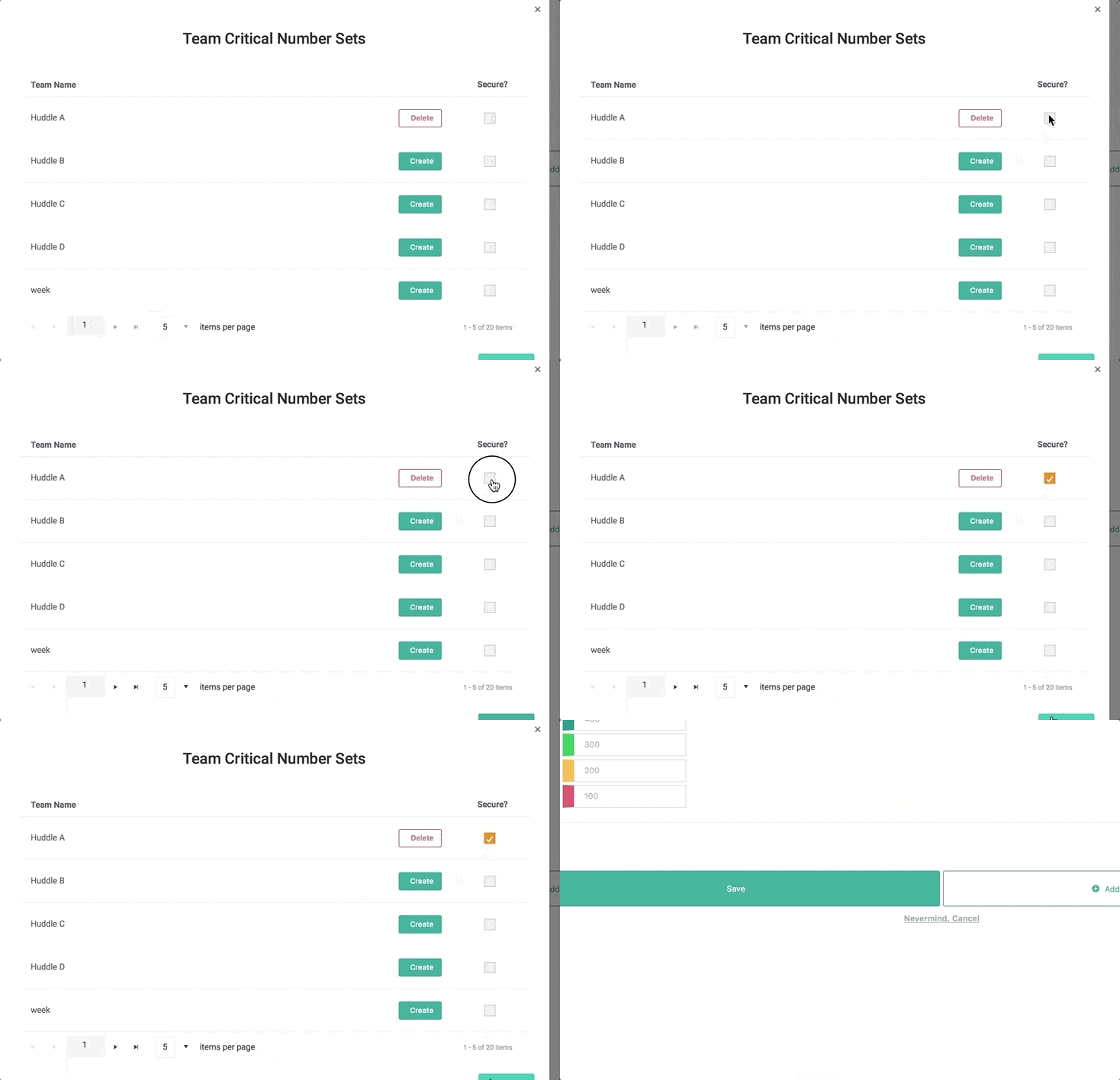
- Team Plans are Public by default (all users in the company can see it). If you are an Admin, you can make it Private (only members of that Team’s Huddle can see it), by checking the box.
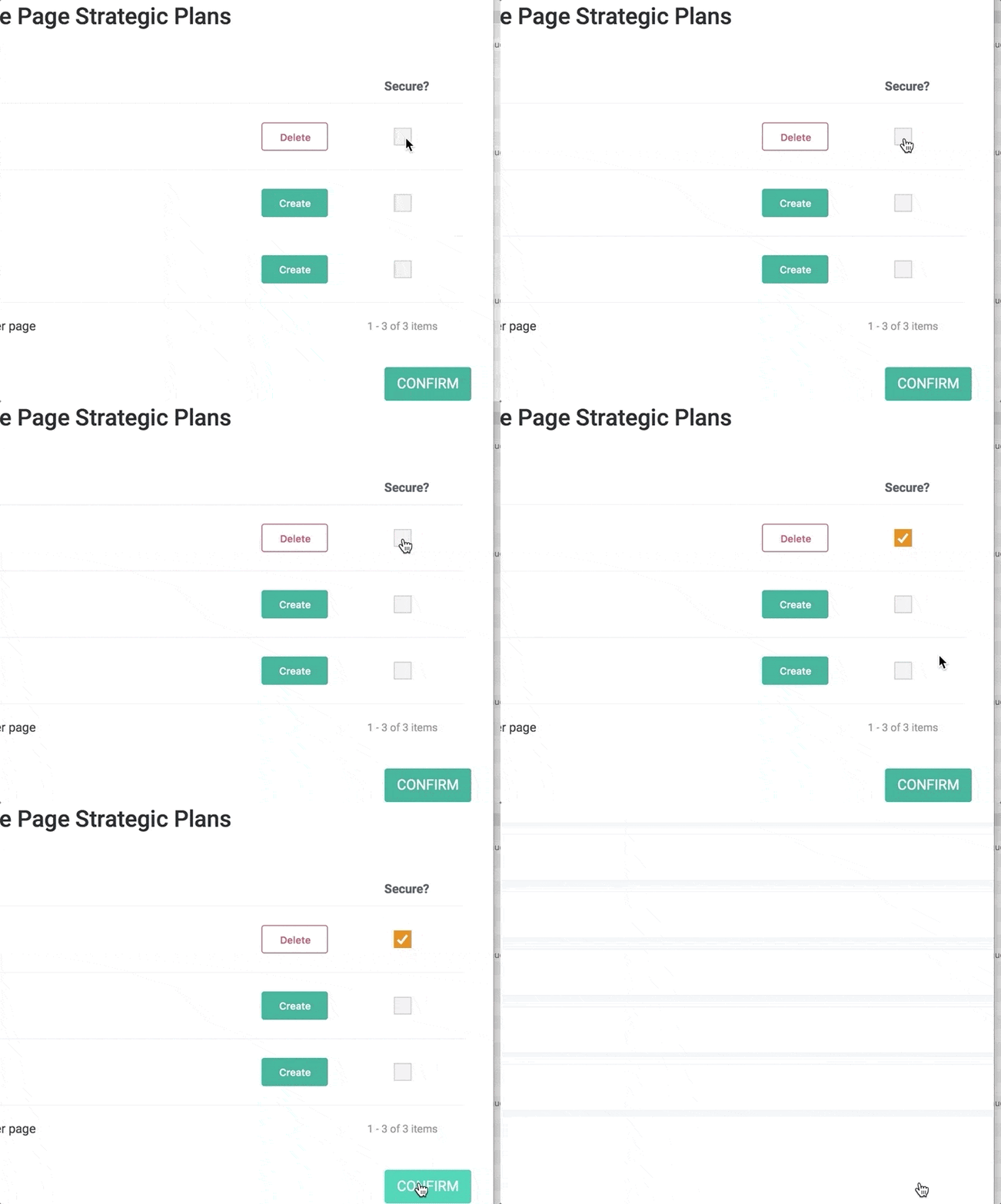
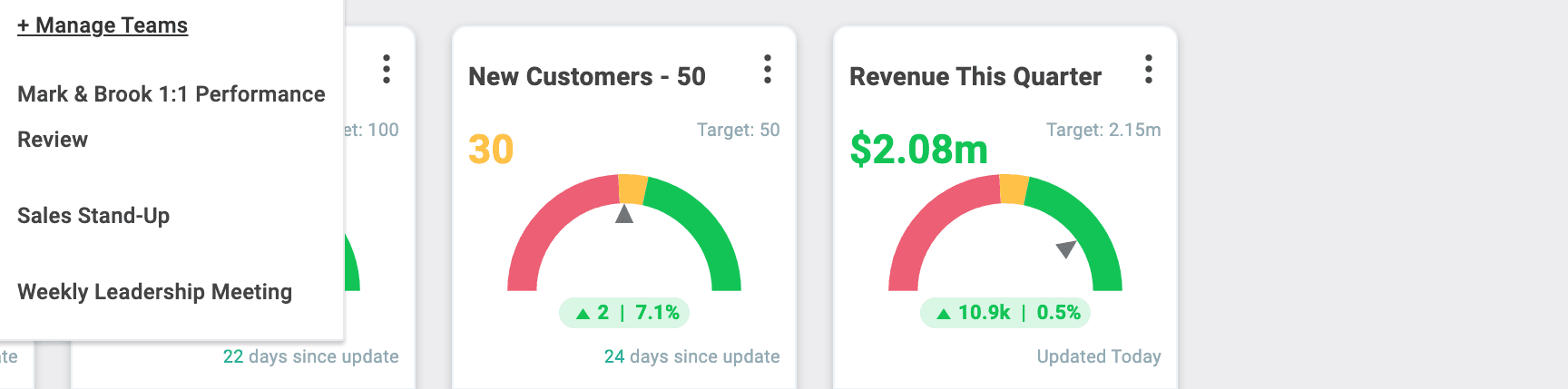
- View Team Plans from the dropdown.
Critical Numbers
Teams are now able to create and manage their own Critical Numbers! Each Team can create up to five of their own Critical Numbers.
To create a Team-level Critical Number Set from the Dashboard:
- Click “Manage Teams” on the Critical Numbers dropdown. Note: only Admins can create and manage Team-level plans.
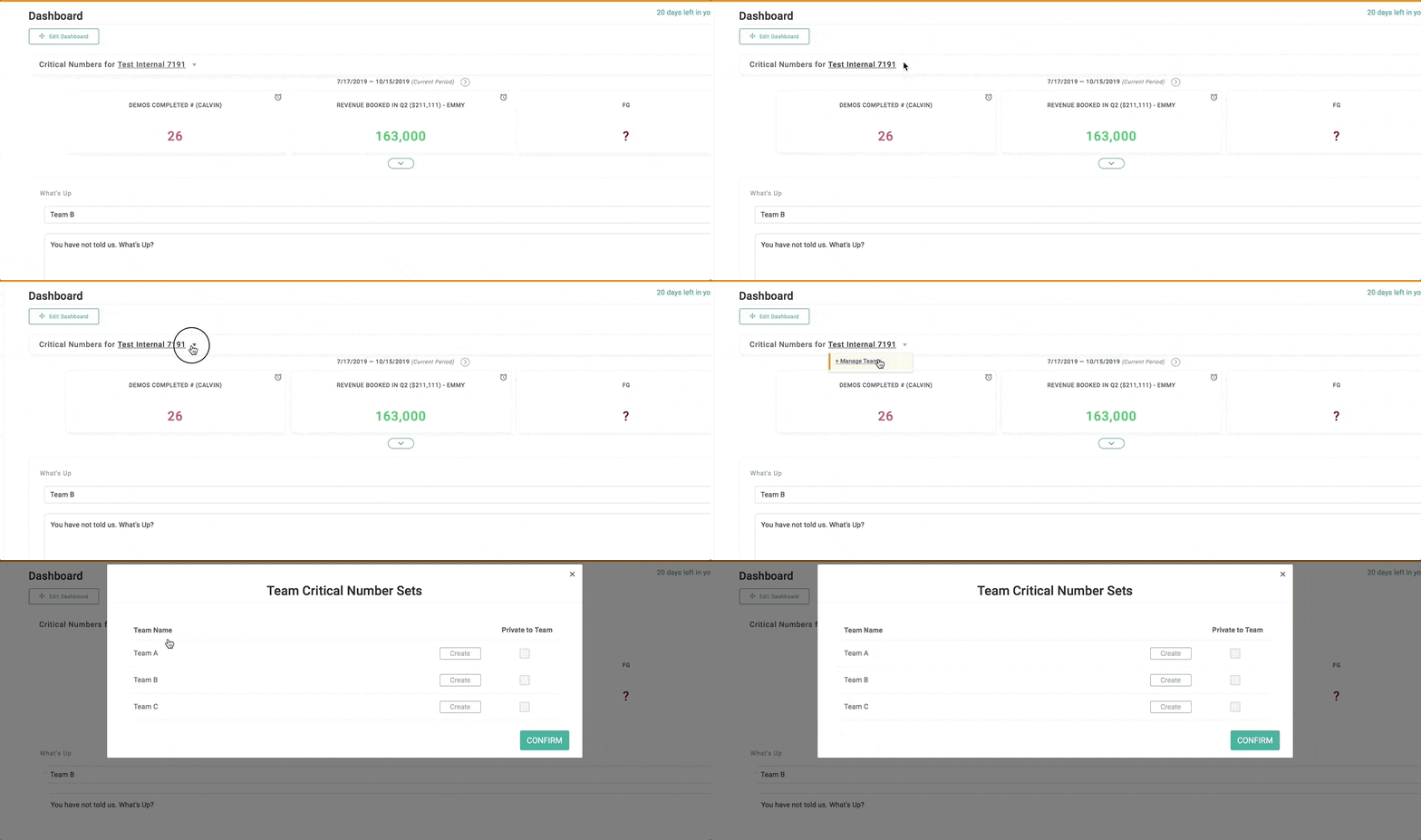
- On the Team Critical Number Sets page, click “Create” for the correct Teams, then click Confirm. Select your Team’s newly created Critical Numbers Set from the dropdown and add up to 5 new Critical Numbers.
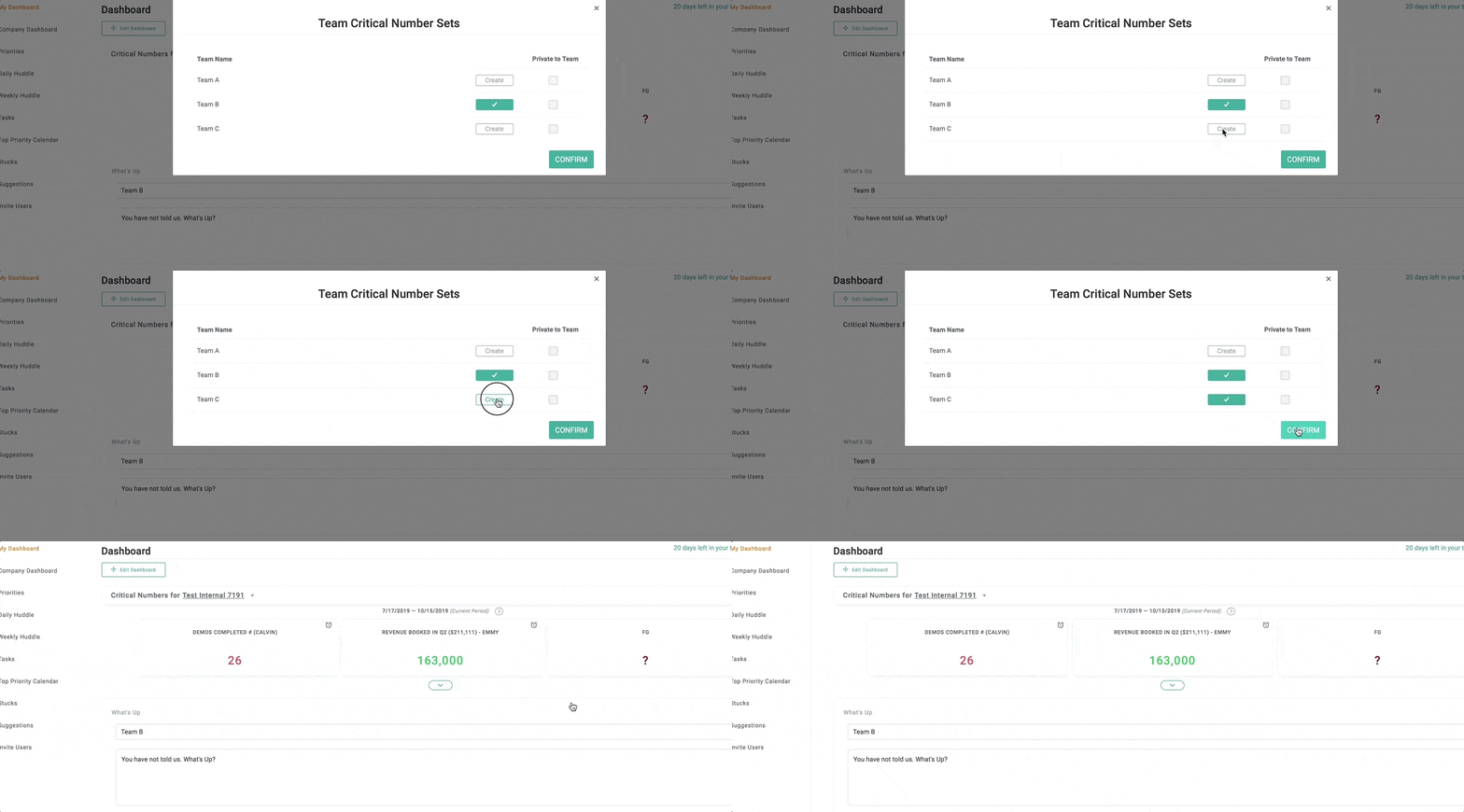
Team Critical Numbers are Public by default (all users in the company can see it). If you are an Admin, you can make it Private (only members of that Team’s Huddle can see it), by checking the box.