
Native Integration
The Align-Salesforce integration allows you to automate updates of your Metrics, Critical Numbers, Quarterly Actions, and Number Priorities via Salesforce Reports. Any report metric in Salesforce can be linked to a Metric. Updates to the report value in Salesforce trigger updates to your KPIs in Align. It’s that easy.
Save time chasing down metric updates for important company metrics in Align such as your:
- Sales Pipeline
- Active Lead Count
- 3-month Trailing Win Rate
Instead, focus on sharing, communicating and discussing impacts with your team.
3 Steps to get your real-time data flowing!
1. Connect your Account to your Salesforce Account
To activate the integration, an admin user in your account will have to provide their login credentials to your Salesforce account. To do this:
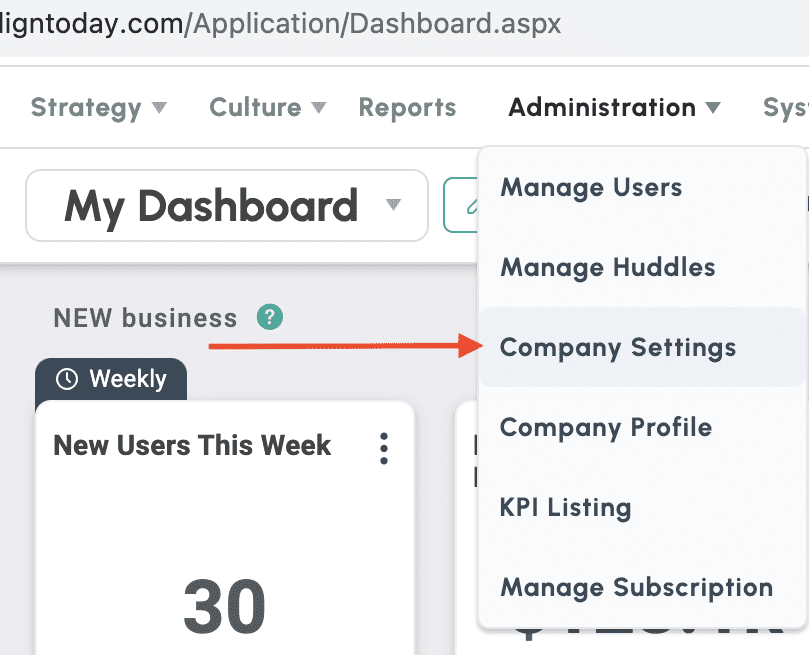
- Go to the Administration > Align Settings page
- In the Integrations sections, click the Configure icon for Salesforce.
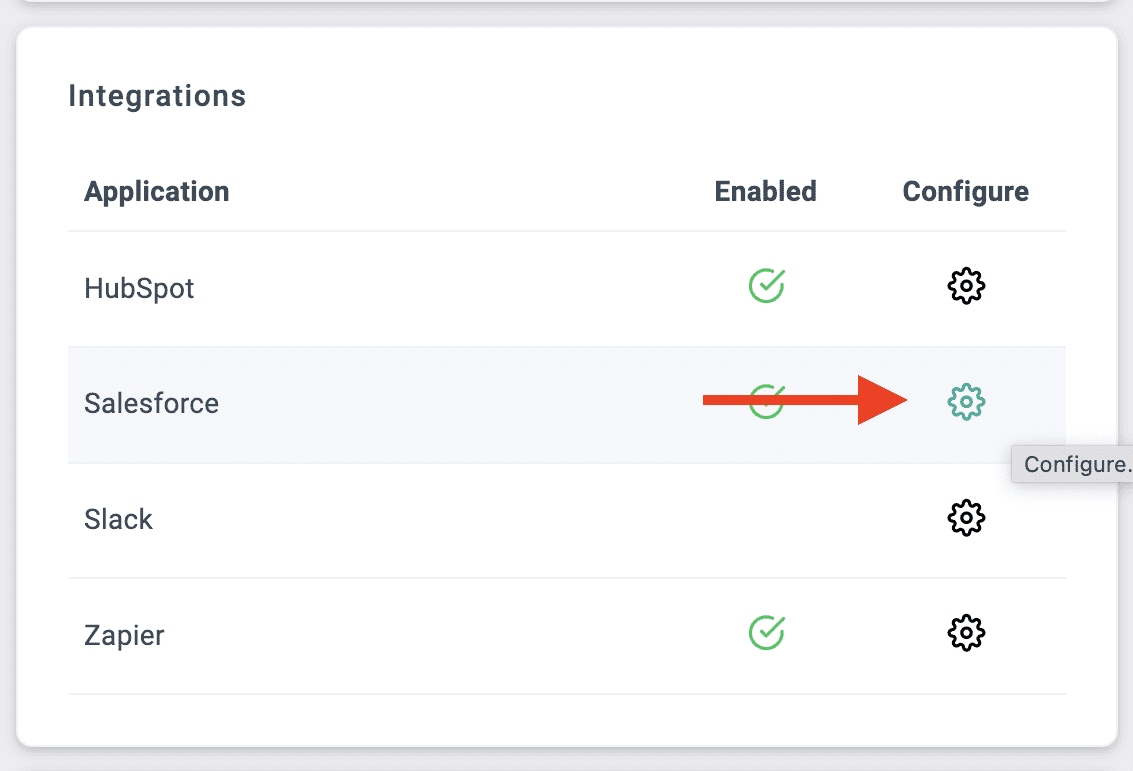
Click the Connect to Salesforce button, then LOGIN to Salesforce. A new tab will open in your browser, and you’ll be asked to provide your Salesforce login credentials, in the same way you would do as if you’re logging into Salesforce. This is a secure page hosted by Salesforce to its integration partners. You’ll then be redirected back to the Align Settings page, and your connection is complete! You’ll see a green checkmark for Salesforce in the Integrations section. Alternatively, you can start connecting a Metric right away, and you’ll be asked to provide your Salesforce credentials then.
2. Get your Salesforce Reports Ready
Once your Salesforce and Align accounts are connected, you should take a couple of steps with your Salesforce reports to get them ready to connect.
- Place reports you want to use in the “Public Reports” folder in Salesforce (Note: in Salesforce Classic, this folder is called “Unified Public Reports”). Only reports in this folder will be available to connect.
- Make sure Summary Metrics in your Reports are ready. The integration uses the values of “Summary Metrics” in your Reports to update Align Metrics. These “Summary Metrics” in Salesforce are summary statistics based on the numeric columns in your report. “Summary Metrics” should appear at the top of the report when you run the report.
- Remove any “Relative Filters” from your Salesforce Report. Salesforce Reports allow you to set up filters that change the content based on the user that is viewing the report. These are called “Relative Filters”. We recommend “Relative Filters” (“My” and “My Team’s”) not be used on reports you are connecting to Align. If you want the connected value to be based on objects owned by a certain group of users, handle that in Salesforce with direct filters. HINT: If you do choose to use a relative filter, the “relative” person will be the person who initially set up the Salesforce Integration for your account.
3. Connect your Metrics
Once your account is connected and your Reports are ready in Salesforce, linking to your Metrics in Align is easy!
- Go to Metrics and click Add Metric
- Select Salesforce in the Integration selection (Note: if you missed step 1, you’ll be asked now for login credentials)
- In the new fields that appear, select the correct Salesforce Report from the dropdown, then select the correct Salesforce Metric within the report you want to track.
- The current value of the selected Salesforce Metric will appear in the Current Value field. Select Save, and you’re done. The Metric is now synced to Salesforce. You’ll see a Salesforce icon on the Metric card to remind you.
Metric Notes:
- You can review to what KPIs the metric is connected to by selecting the green number under “Connections”
- Current Values of Salesforce-synced Metrics cannot be updated manually.
- The values for Salesforce-synced Metrics update every 24 hours at midnight CST.
Looking for troubleshooting and FAQs? Check out the in-App FAQs in Align.