

This integration allows for you to take a number from your system through to Zapier then directly into Align.
We’ve put together a few of the most commonly requested integrations (see links below)…but there are hundreds more!
Remember, you must also have a Zapier Account to get started. Click here to create a free Zapier account!
Some of our favorite ways to use Zapier
Google Sheets, Excel and Email Parser
Note: if these do not work for your situation, check out the Open API documentation. or ask your Advisor if they know of any other options.
Google Sheet/Excel Online: If the data you are looking for is not exposed to Zapier directly, you may be able to connect to Google Sheets or Excel Online. Once connected, manipulate that data as needed with formulas to prep it to bring in as a Metric to Align.
Note: Before connecting to Google Sheets, watch this short video on how to set up your spreadsheet to ensure Zapier can read it.
Use Zapier’s Email Parser to pull the data from the body of an automated email through to Zapier, then to your Metrics in the software. Make sure to check the data point is not in an attachment or in an image, Email Parser can only read data in the body text. Learn more about Email Parser.
CRM & Marketing Tools
We’ve put a few “fan favorites” to show what we’ve seen work in the past. Let us know if you have any questions!
Project Management & Task Tools
For Project Management softwares task creation or update information is often exposed to Zapier, however, summary metrics (which you likely are using in Align) are often not. We have found the best way to get around this is to use the below solutions.
Accounting Software & ERP Systems
For Accounting Softwares and ERP systems, a “flash report” or email with information in the body of the email is often the best way to parse out the summary metrics you will likely want to track in Align.
Get started with Zapier in 3 easy steps
The Zapier app is the “middleware” that takes information provided by your app and translates it to talk to Align Metrics.
What do you want to connect?
Evaluate Zapier as a way to connect a system you currently use to a number in Align.
Confirm the following:
- I have access and can see the number I wish to measure in my current system.
- My system has the capabilities to “expose” or share the metric with an outside software. To check this, look at your app documentation or help section. Do they say they can connect with other applications, or that they have an API? Zapier has thousands of apps they connect with, so also check the Zapier marketplace!
- I can access the exposed metric directly through Zapier or via a google/excel integration or in the body of an email.
- Check if you can directly connect to Zapier, search to see if your app is already part of the Zapier marketplace. (if no, skip to 3)
- Confirm the trigger in Zapier allows me to access the metric. Many apps do not expose a number or summary metric directly to Zapier, but they do expose a task or other action. This is the gotcha! But don’t worry, there’s a workaround below.
- Can you get the information from your system into a Google/Excel sheet or in the body of the email (see below for details)?
Step One: Link your Align account to Zapier
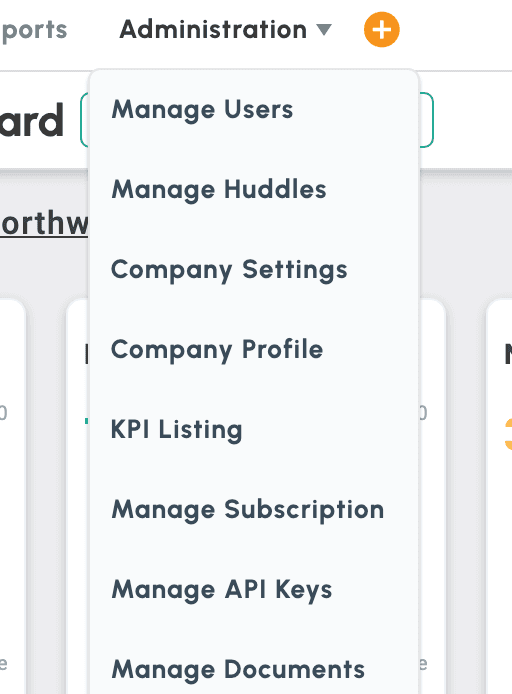
1. Go to Administrations > Company Settings
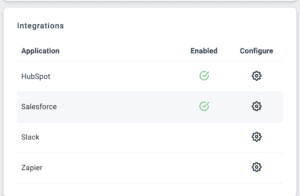
2. Click on the “Configure” icon for Zapier
3. In the Zapier Configuration drawer, click “Connect to Zapier”
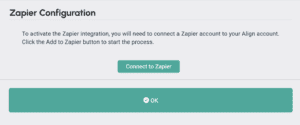
4. You’ll be sent to Zapier, where you can accept the private app invite. Click “Accept Invite & Build a Zap”.

5. Align is now available to add to your Zaps. You’ll finish the connection when you create your first Zap.
Step Two: Set Up Your Zaps
Now that you’ve added the Align app to your Zapier account, create Zaps to update your Metric values in Align based on triggers in Zapier-integrated apps. Follow these these steps:
Prep your Metrics
1. Go to the Metrics tab on the lefthand navigation menu in Align. Select the metric (or add a new one) you want to automate through Zapier. Set the “Integration” dropdown to “Zapier”.
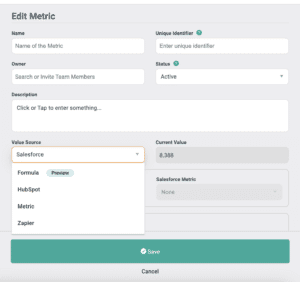
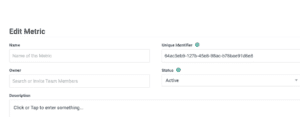
2. Once Zapier is selected, the Unique Identifier field at the top right will be created. This ID will eventually be entered in Zapier.
Make sure the rest of the fields are correct and Press Save.
Configure the Align Action in your Zap
- Login to your Zapier account and Create a New Zap
- Create the first steps to get your data point into Zapier. (click here for Tips on connecting to common apps)
- Add an Action step in your Zap and search for the Align integration
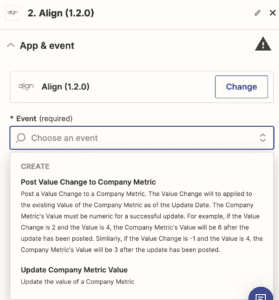
- Choose the Update Company Metric Value event from the dropdown
- Choose the Metric name from the dropdown – the unique identifier from the metric creation above will also be available for search.
- For “Update Date”, enter the word “today”.
- For “Value”, select the information you configured in the “Trigger” section on the earlier steps in your Zap creation.
- Test and publish your zap to see your Metric updated in Align!
Step Three: Connect to your apps
You are ready to connect your apps and automate your metrics!
Scroll down to see Zapier Tips and tricks for connecting to Excel, Google Sheets, your CRM and more!